How to copy a folder in Google Drive
Copy one folder and everything inside it to a new place in Drive, without setting up a template first.
Use a folder copy when you just need one folder duplicated somewhere else in Drive, with everything inside it. Copy between My Drive and Shared Drive, as long as your account has access.
1. Copy a folder
Click Copy Folder in the sidebar, then choose the folder you want to copy and where you want it to go.
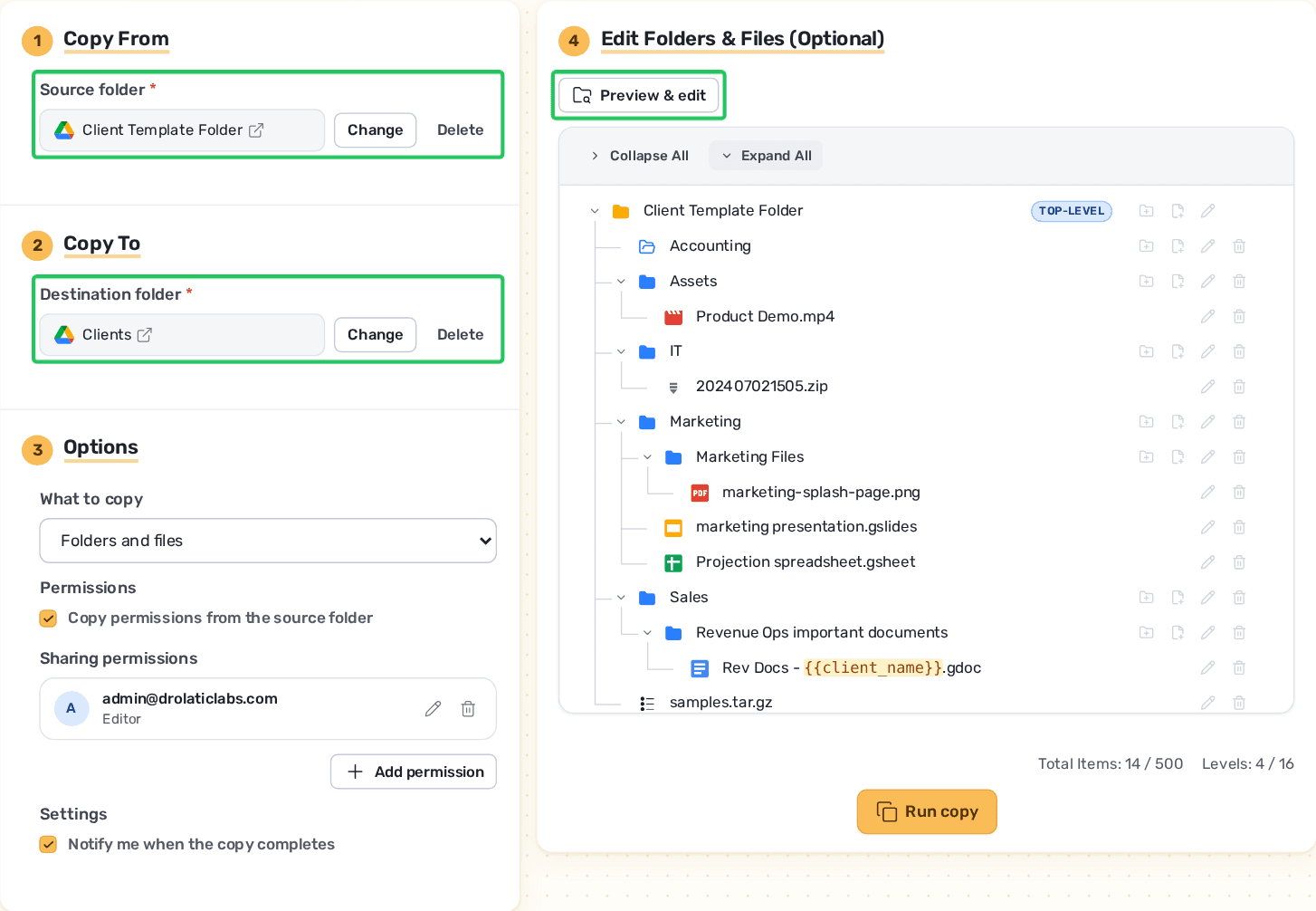
Optional: Preview and edit your copied structure
Check what gets copied before you run it, and make quick changes — rename folders, add or edit files, or remove anything you don't need. Your original folder in Drive is never changed.
2. Wait for the copy to complete
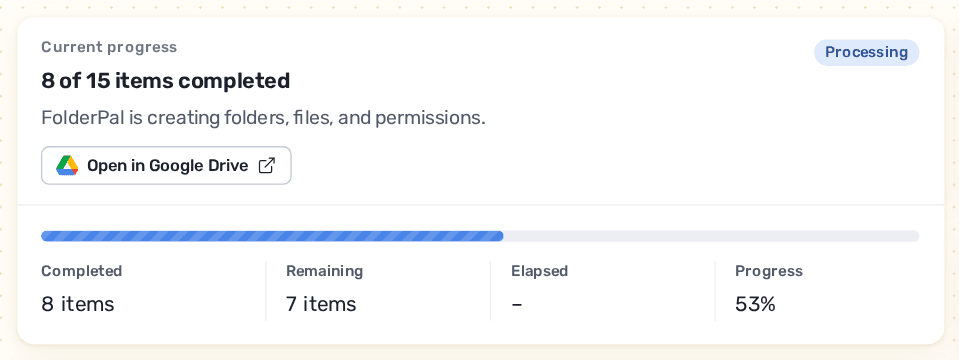
3. Copy done!
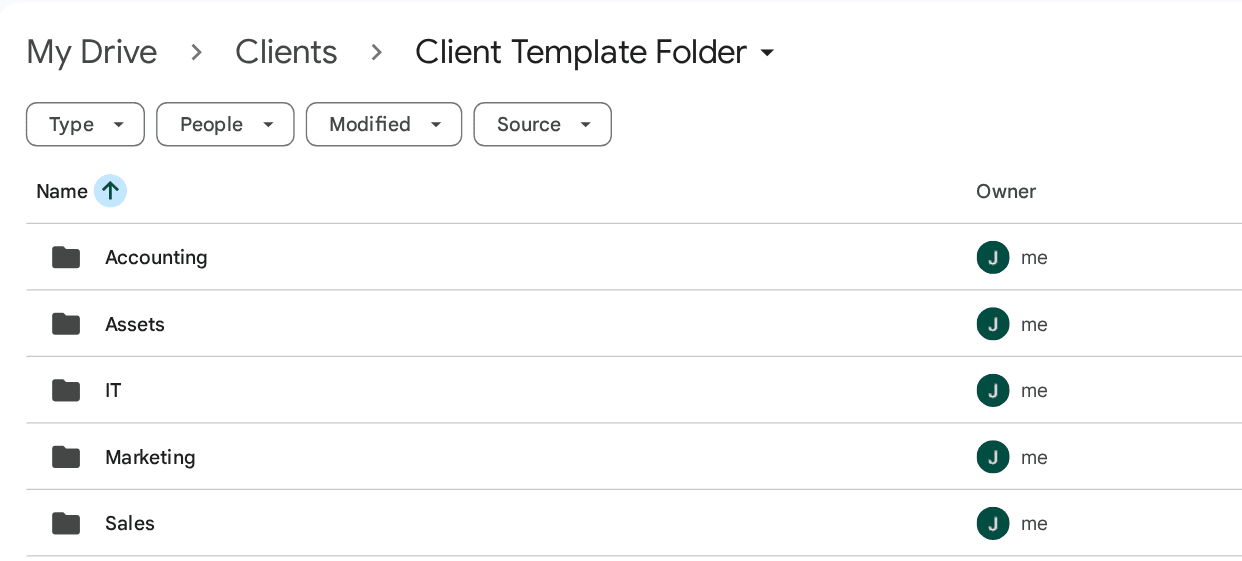
What gets copied?
You choose how much to bring across: just the folder structure, or the folders and everything in them. Either way the whole tree comes across — nested folders and the files inside them, however deep they go.
Names come across exactly as they are, with no "(1)" added on the end. Files keep their original format too — nothing gets converted along the way.
You can also copy files as shortcuts, so the new folder points back to your original file instead of making a second copy of it.
When should I use a template instead?
A folder copy is a one-off. If you find yourself making the same folder again and again — one per client, project, or job — build a template instead. You set the structure up once, then generate a new set of folders in a couple of clicks, with the names filled in for you.
See the quick start guide to set one up.